 TTime
TTimeSet a shortcut
Assign a shortcut to Image Translation under Global Shortcuts in Settings
TTime Image Translation
Capture an image area and read the translation directly on the image
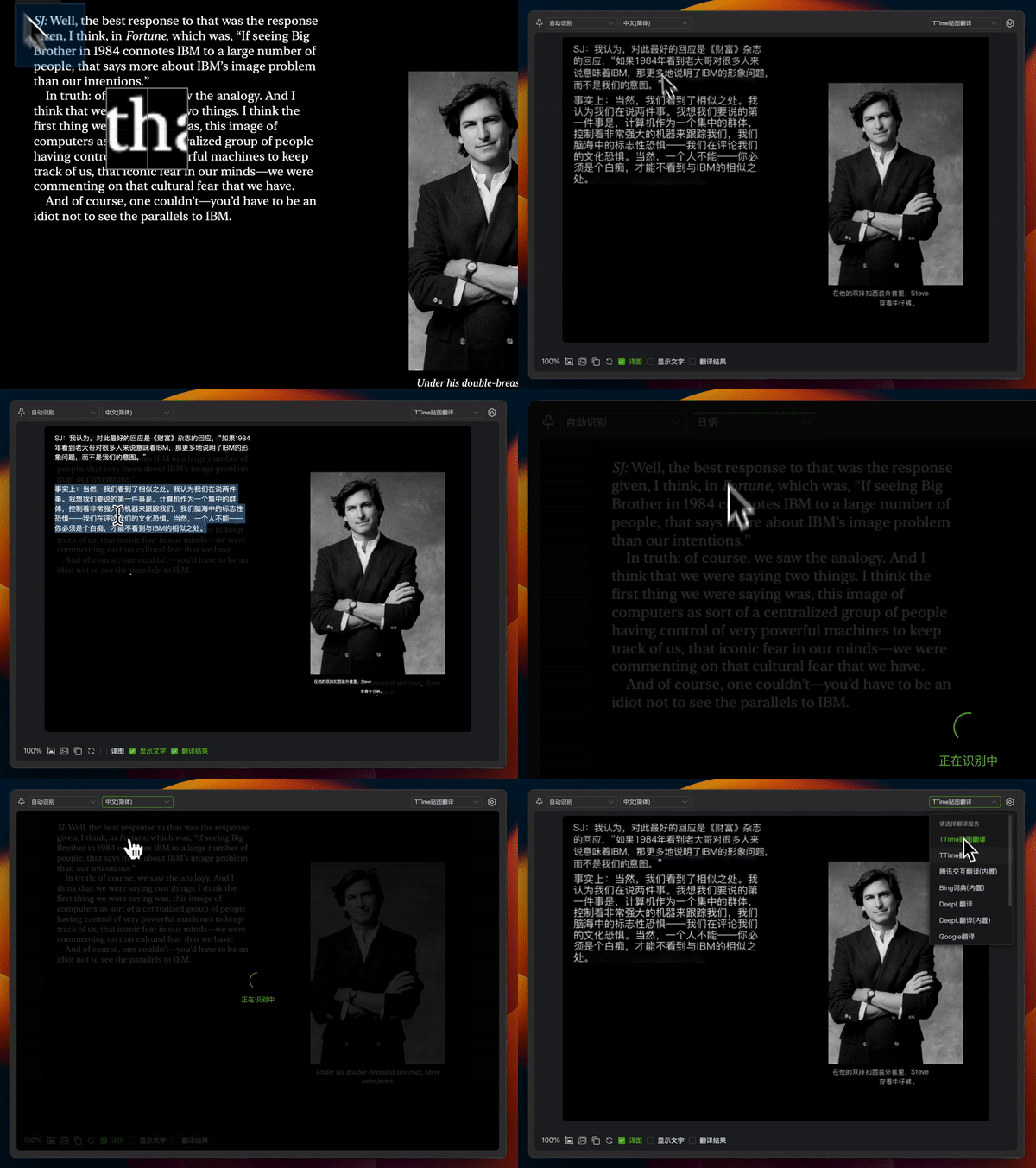
Read translations on the image
Read translated product details, web images, and document illustrations while keeping their visual context
Assign a shortcut to Image Translation under Global Shortcuts in Settings
Open the image, press your shortcut, and select the area to translate
TTime recognizes and translates the text, displaying the result directly on the image
Use cases
Read specifications, materials, and instructions shown in product images
Translate labels in slides and report illustrations while following the diagram
Read foreign-language text in web graphics, event posters, and information cards
How it works
Install and open TTime, then assign an Image Translation shortcut in Settings under Global Shortcuts
Open the image you want to translate and press your shortcut
Select the area and read the translation on the image
Choose how to read the result
Displays translated text on the image so you can read it alongside diagrams, labels, and other visual details
Shows the recognized text and its translation in a result window for reading
Learn more about screenshot translation →User guide
Use the shortcut guide and feature demo to set up image translation for your workflow
FAQ
TTime currently supports Windows and macOS
Assign an Image Translation shortcut in Settings under Global Shortcuts, then press it to capture an area for translation
The translation appears directly on the image so you can read it in context
Use OCR text recognition to extract the original text for copying or editing
Capture text on your screen and read its translation in a result window
Highlight text and press a shortcut to translate it
Extract the original text from images for copying and editing
TTime
Available for Windows and macOS