 TTime
TTimeFAQ
Find answers to common questions about downloading, installing, authorizing, and using TTime
What platforms are supported?
TTime currently supports Windows and macOS
Linux is not currently available and may be considered in the future based on demand
Why do some translation services require configuration?
Some translation services are provided by third-party providers and integrated into TTime, so you need to apply for the service and obtain the required credentials from the corresponding provider
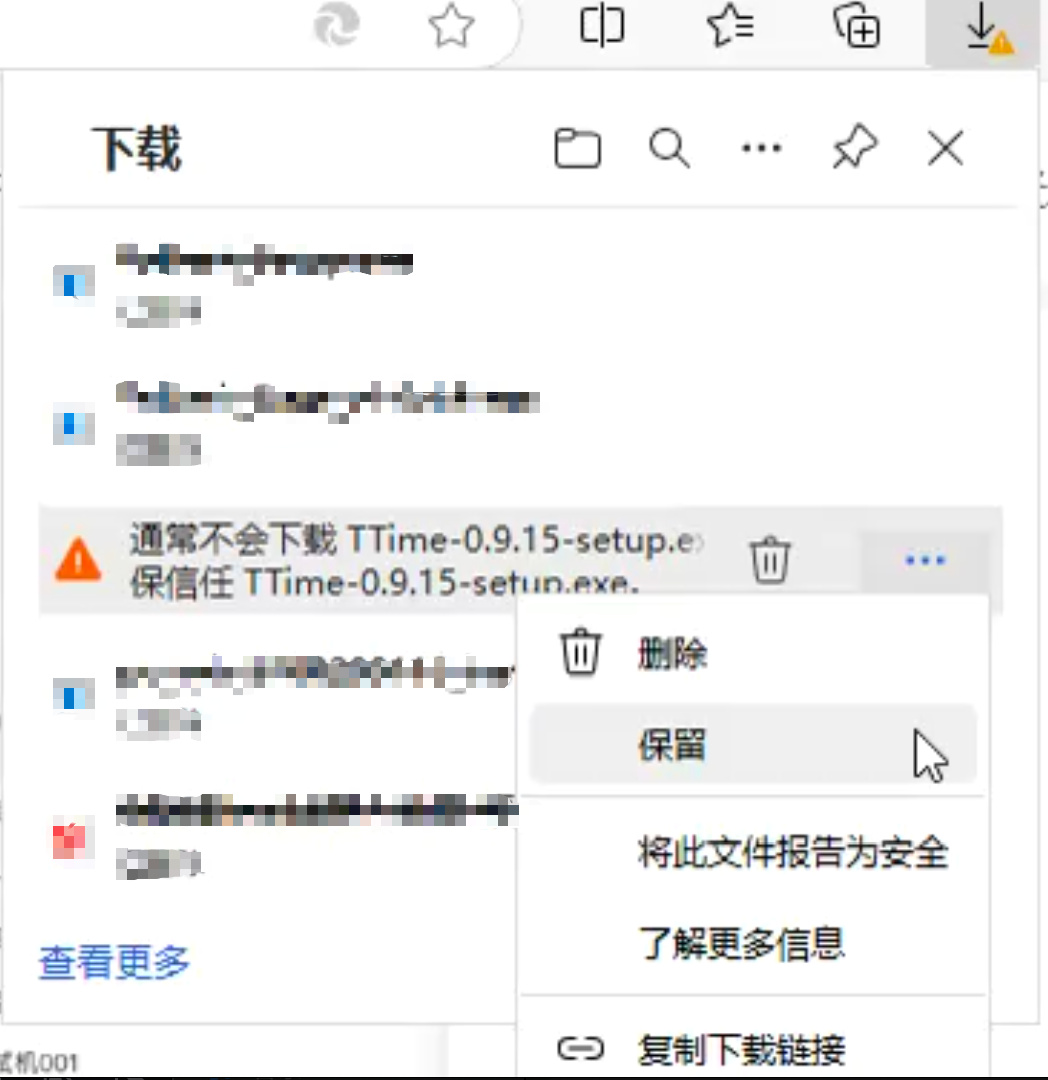
Windows - Edge says the file is not commonly downloaded
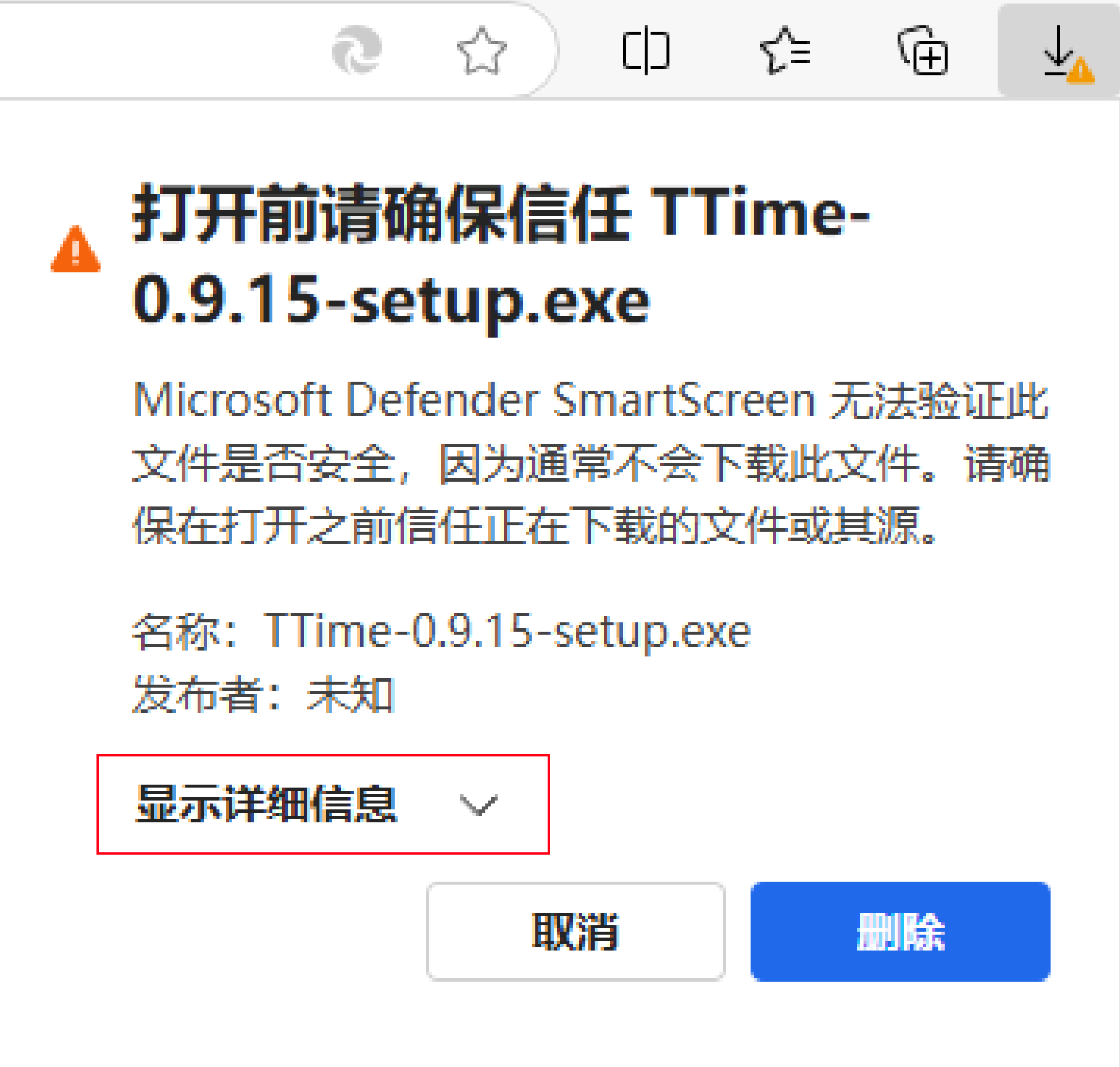
Microsoft Defender SmartScreen may display this warning based on the reputation information available for the file and application
If you downloaded the installer from the TTime website, follow these steps to keep the file:
Hover over the downloaded file-> click thethree dotsthat appear on the right -> clickKeep- Click
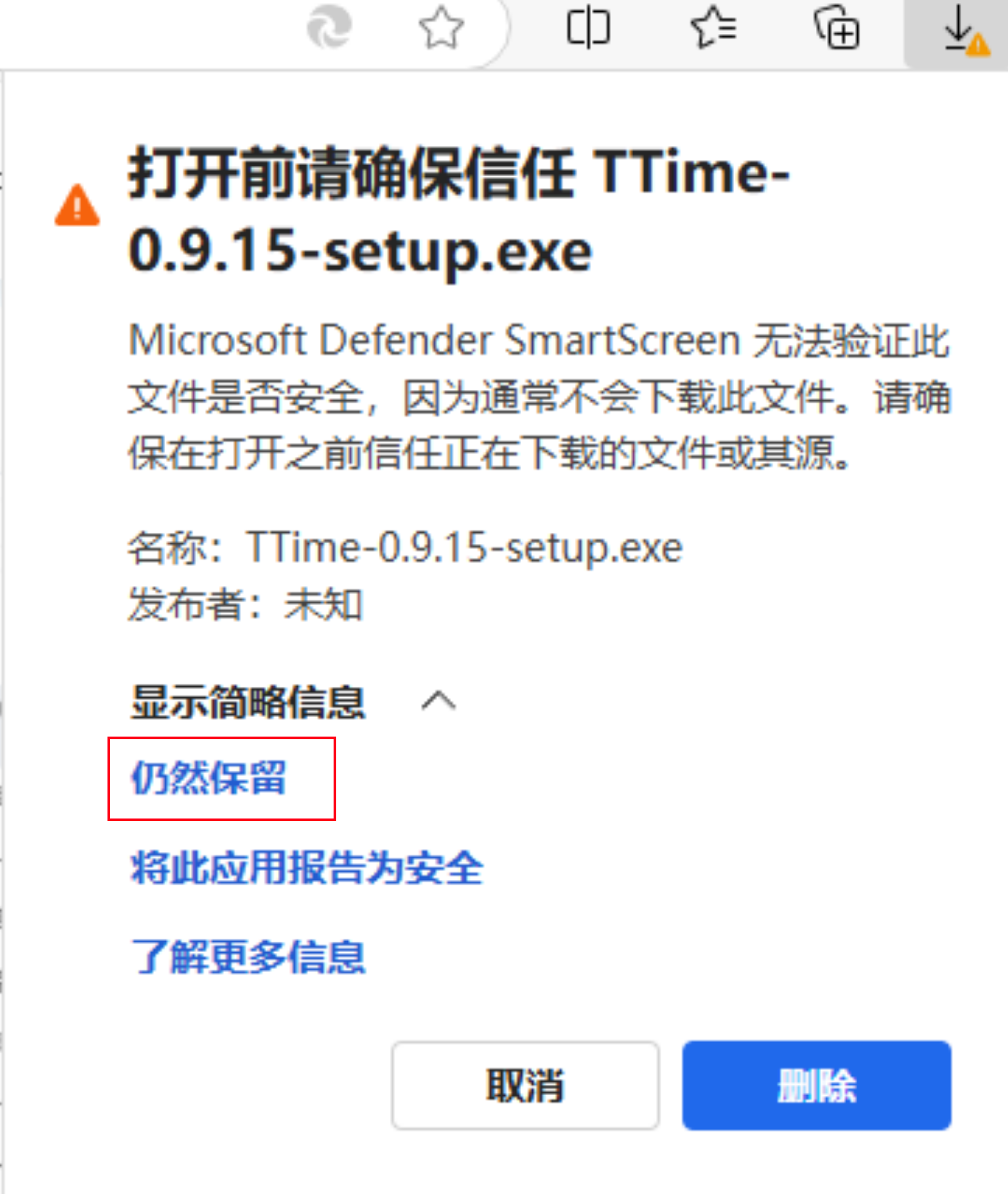
Show more - Click
Keep anyway
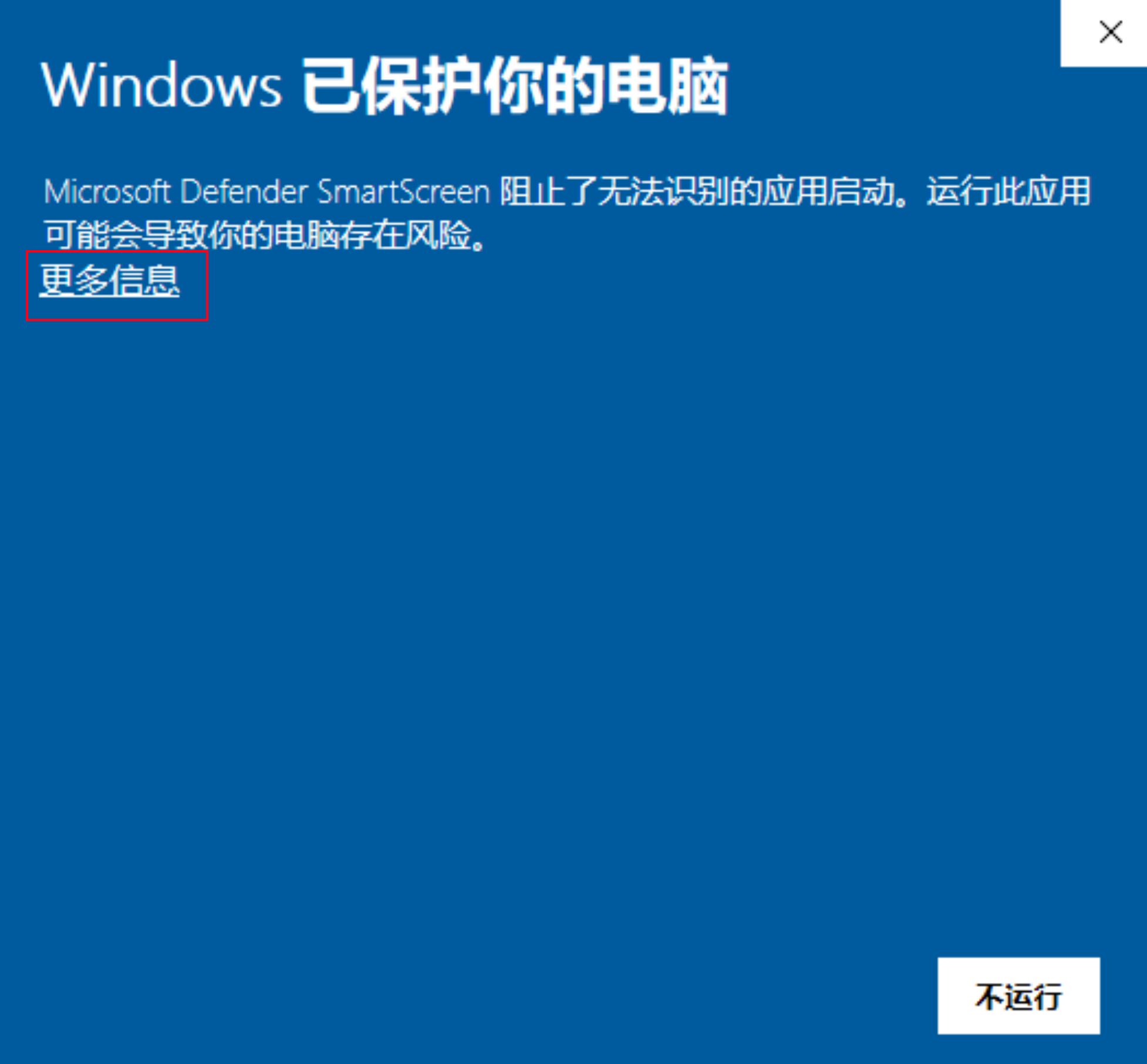
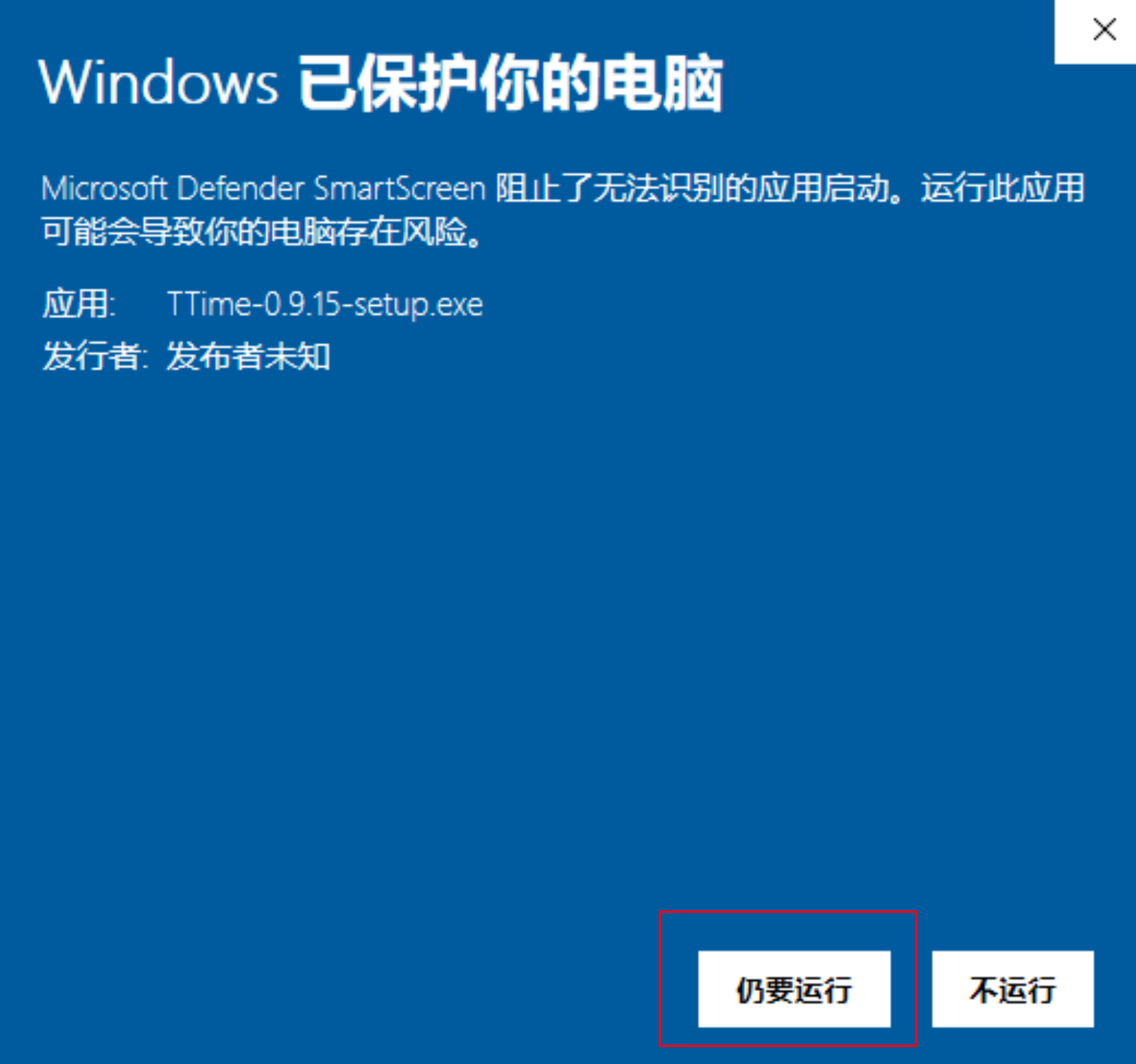
Windows - The installer says “Windows protected your PC”
Microsoft Defender SmartScreen may display this warning while checking the reputation of an application
If you downloaded the installer from the TTime website, follow these steps to continue:
- Click
More info - Click
Run anyway
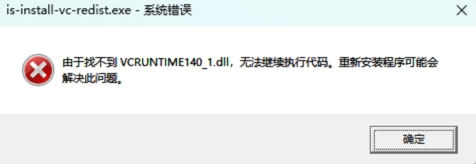
Windows - Installation or startup errors
Error 1: VCRUNTIME140_1.dll was not found
Error 2: A message mentions A JavaScript error occurred in the main process and node-screenshots.win32-x64-msvc.node
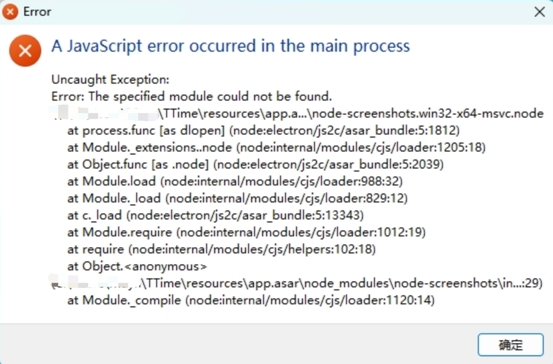
These errors are usually related to a missing Microsoft Visual C++ runtime library, so install the VC runtime first and contact us if the problem continues
Download the VC runtime: https://github.com/InkTimeRecord/TTime/blob/main/build/VC_redist.x64.exe
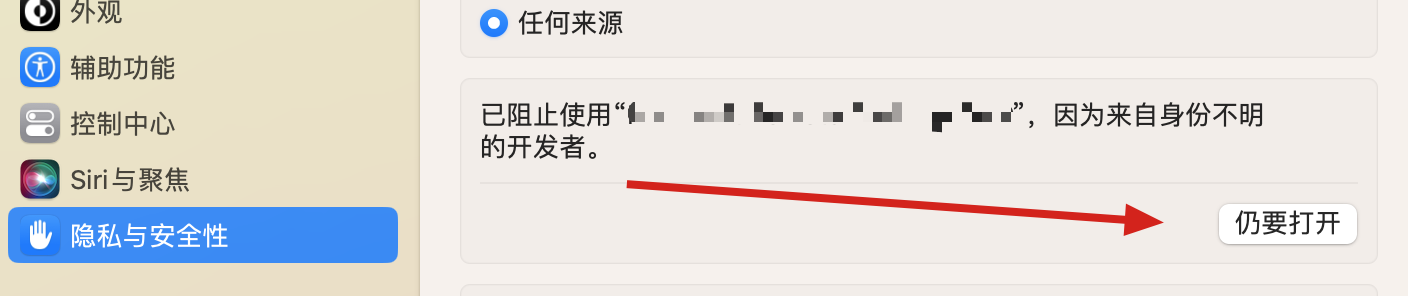
macOS - “TTime.app” cannot be opened after installation
Apple cannot verify that “TTime.app” is free of malware that may harm your Mac or compromise your privacy
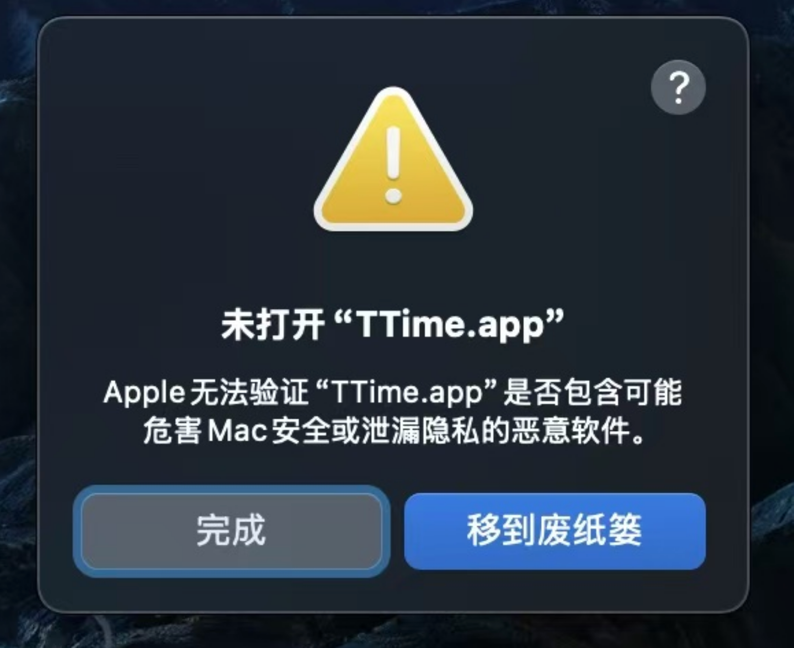
macOS performs security checks on applications downloaded from the internet
If you downloaded the application from the TTime website, follow these steps to allow it to open:
Open
System Settings, selectPrivacy & Security, and scroll down toSecurityFind the TTime message and click
Open Anyway
macOS - Permission prompts keep appearing after authorization
If TTime continues to request permission after authorization, try removing and adding the permission again
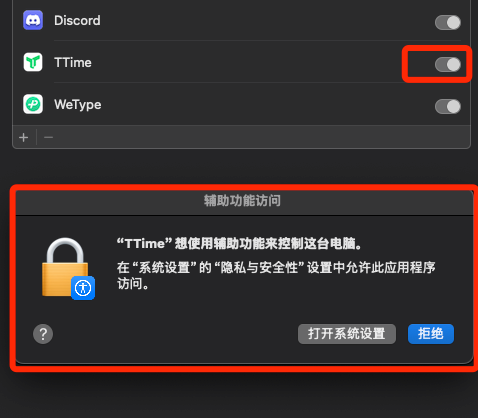
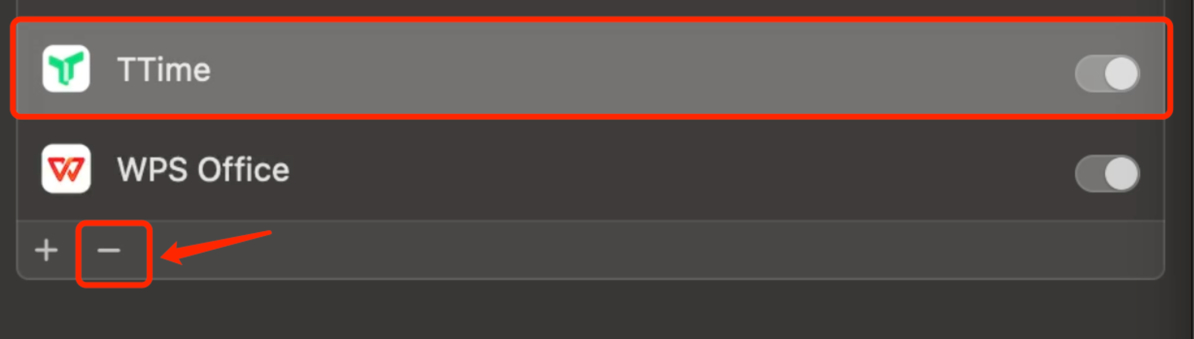
- Select
TTimein the corresponding permission list and remove it
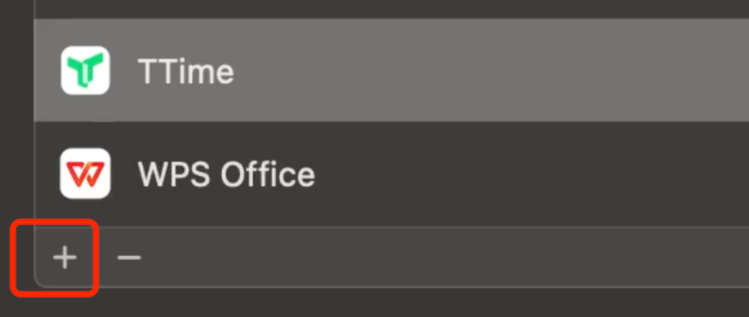
- Add TTime to the permission list again and complete the authorization
Archived Issues
The following issues have been resolved in newer versions
This section is retained for historical reference
macOS - “TTime.app is damaged and can’t be opened” appears after installation
Older versions could trigger application quarantine on some macOS systems and display this message
The following two methods were used at the time
1. Enable "Allow apps from anywhere"
Open System Preferences -> Security & Privacy -> General
Select Anywhere under Allow apps downloaded from
If the application still cannot run, try the second method
2. Run a command in Terminal
Open Terminal and enter the following command:
sudo xattr -rd com.apple.quarantine /Applications/TTime.appPress Return, enter your Mac login password, and press Return again
Note: Terminal does not display characters while you enter a password, so type your Mac login password normally and press Return
Reference article: https://zhuanlan.zhihu.com/p/99489849