 TTime
TTimePress the shortcut
Use the default Alt + Shift + W shortcut to start screenshot OCR
TTime OCR
Press a shortcut, select an area of your screen, and extract text for copying or further use
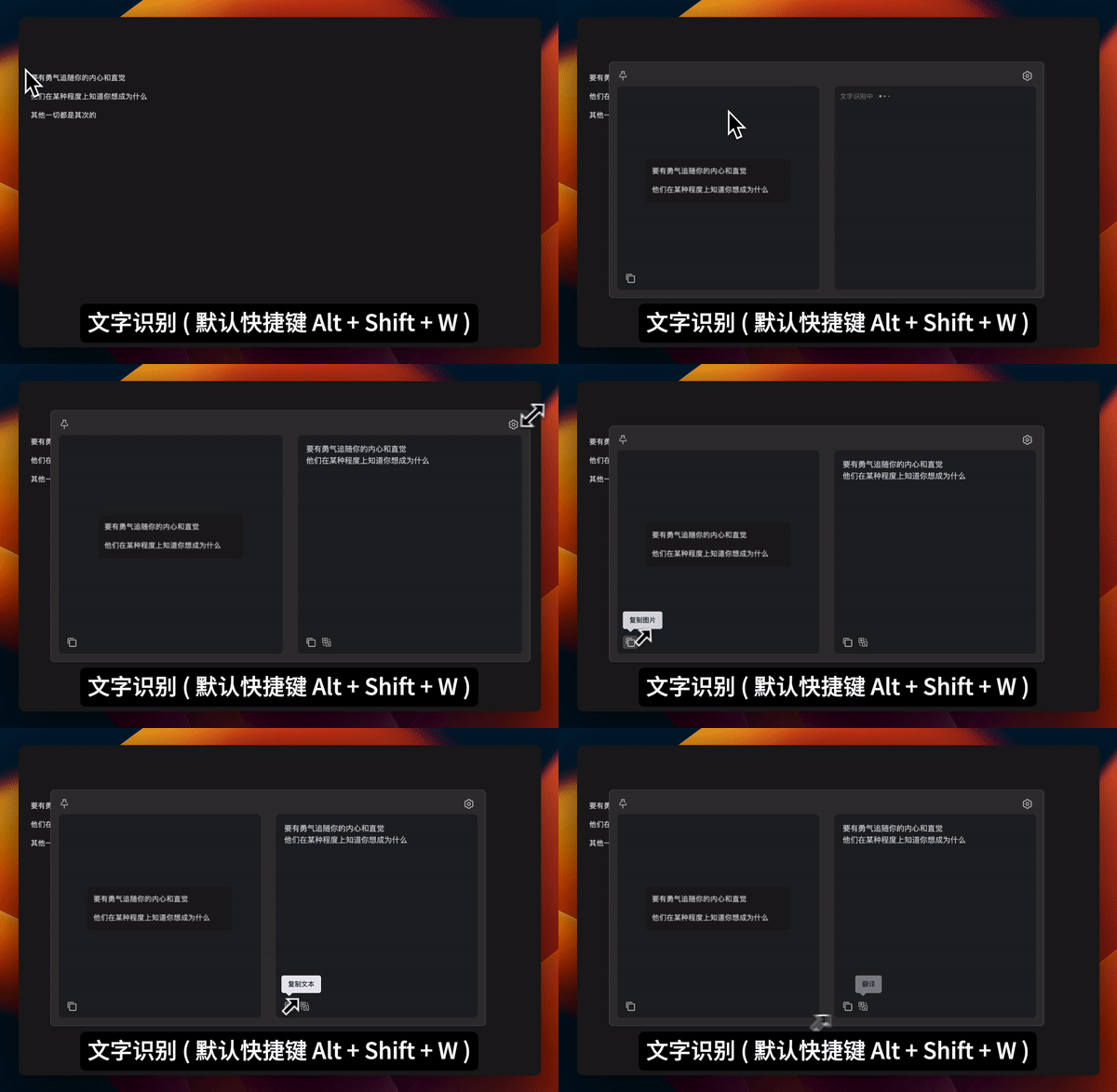
Ready after installation
TTime includes offline OCR, so there are no services or API keys to configure before you start
Use the default Alt + Shift + W shortcut to start screenshot OCR
Drag over the part of the screen containing the text you need
TTime extracts the text and displays it in the result window
Use cases
Extract text from menus, settings, dialogs, and error messages
Extract text from scanned PDFs, ebooks, presentations, and document images
Extract text embedded in web images, posters, and product images
How it works
Download, install, and open TTime
Press the default Alt + Shift + W shortcut to start capturing
Select the text area, then view and copy the extracted text
Two OCR modes
Opens a result window where you can review, edit, and copy the extracted text
Copies the extracted text to your clipboard without opening the OCR window
Advanced settings
The built-in offline OCR works out of the box, while additional OCR services are available for specific languages or recognition needs
FAQ
Use it to extract text from screenshots, images, scanned documents, and app interfaces for copying, editing, or translation
No, TTime includes offline OCR that is ready to use after installation
Screenshot OCR opens a result window, while Silent Screenshot OCR copies the extracted text directly to your clipboard
TTime currently supports Windows and macOS
Capture text on your screen and read its translation in a result window
Highlight text and press a shortcut to translate it
Capture an image area and read the translation on the image
TTime
Available for Windows and macOS and ready to use after installation