 TTime
TTimeMembership Introduction
This section mainly introduces the configuration of membership function
Membership is divided into two versions: Member and V1 Member
Member
All functions are open to use (including all functions of V1), and there is a fixed amount given every month, which is generally enough for most people.
V1 Member
For members (non-cloud) between software versions 1.0 - 2.0 (including versions after 0.9.4)
You can use AI translation, polishing, paraphrase, Chinese dictionary, code interpreter, and create customized translation sources, but the quota needs to be purchased separately
OCR intelligent segmentation and merging
TTime uses a self-developed algorithm to intelligently segment the OCR results to avoid problems such as line breaks when a normal paragraph has multiple lines
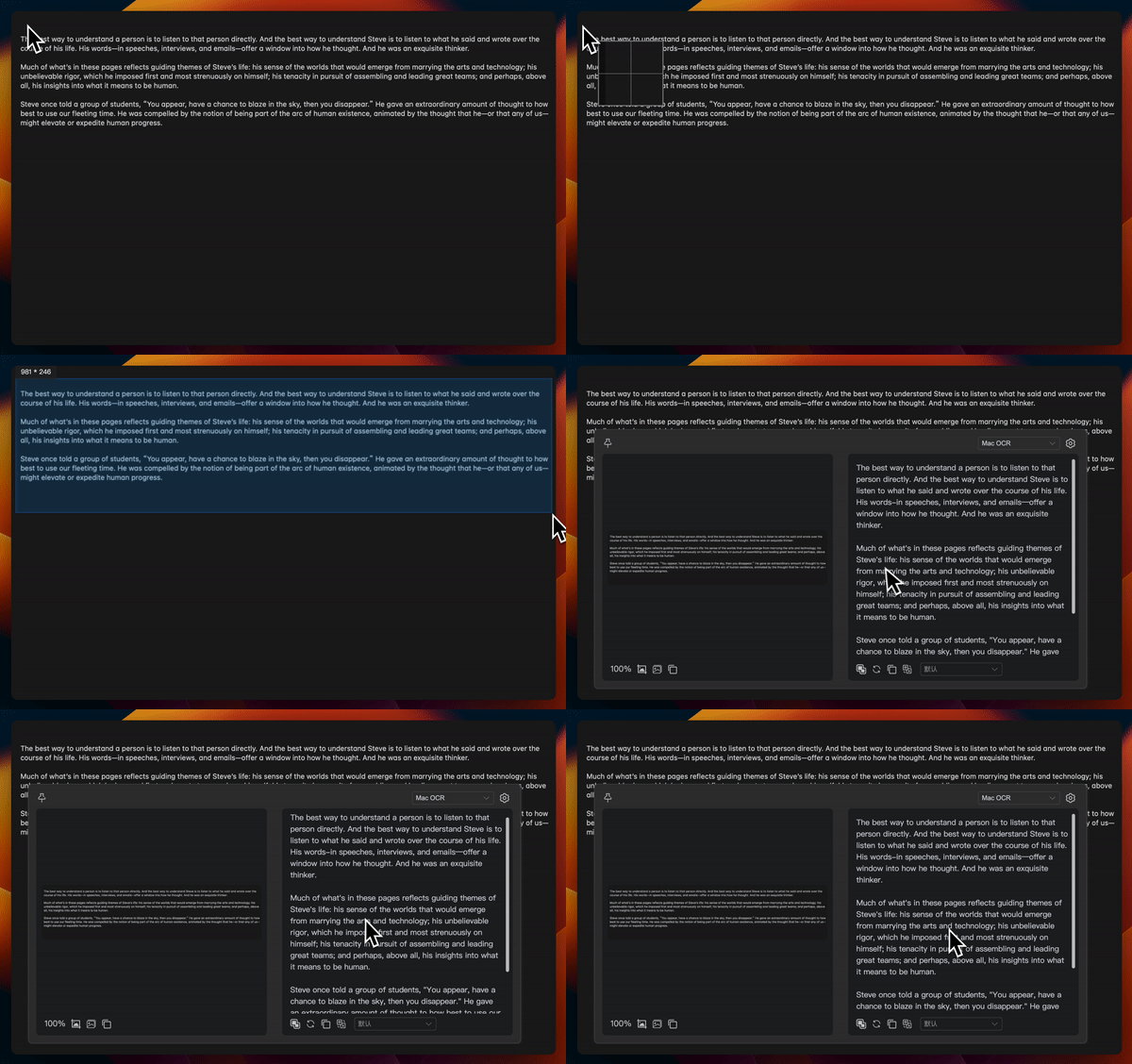
Image translate
Image Translate Settings -> Global Shortcuts Configure the corresponding shortcut keys
After configuration, press the corresponding shortcut keys, capture the image to be translated, and then display the translation result directly on the image

Replace translation
Replace translation mode in Settings -> Replace translation source Configure the corresponding translation source
Currently, only the translation source enabled in Translate source settings can be configured and the translation source needs to correspond to mode type as normal mode or folding mode
The following describes the configuration process
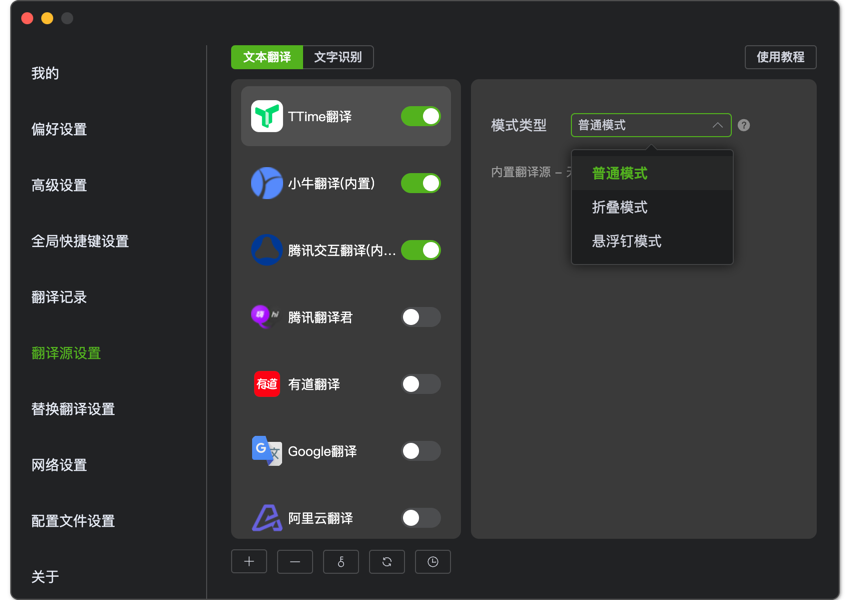
1. Configure the translation source mode type
As shown in the figure below, my Translate source settings has three translation sources enabled, and the mode is set to normal mode or folding mode
2. Configure replacement translation source
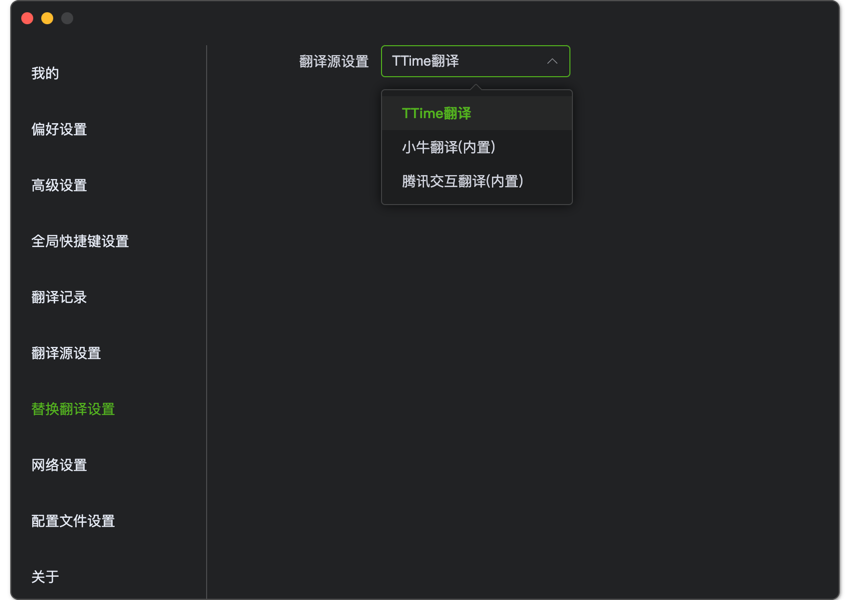
Now switch to the drop-down box in Replace translation source and you can see the three translation sources just configured
(Note: If you do not configure here, the default selection is the first translation source enabled in Translate source settings)
3. Configure shortcut keys
After configuration, enter Global shortcut key settings and configure the Replace translation shortcut key
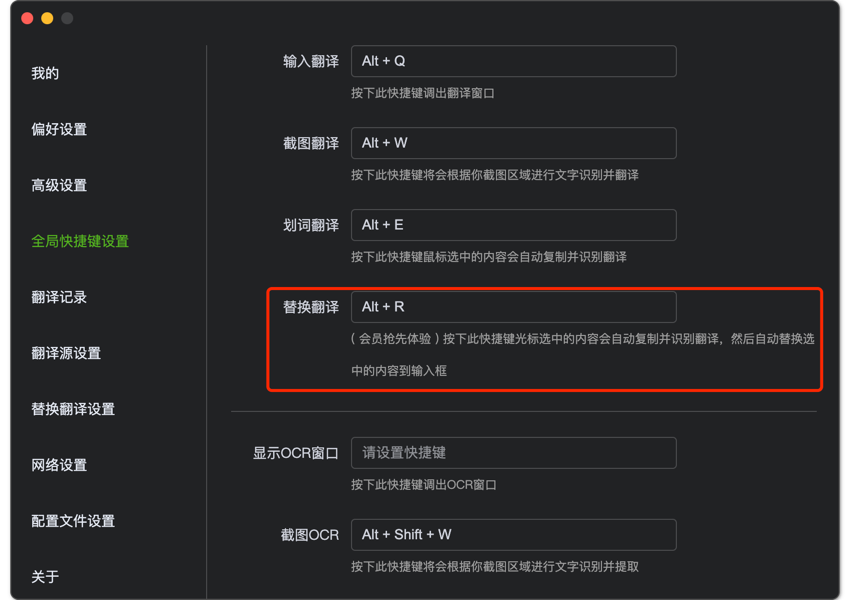
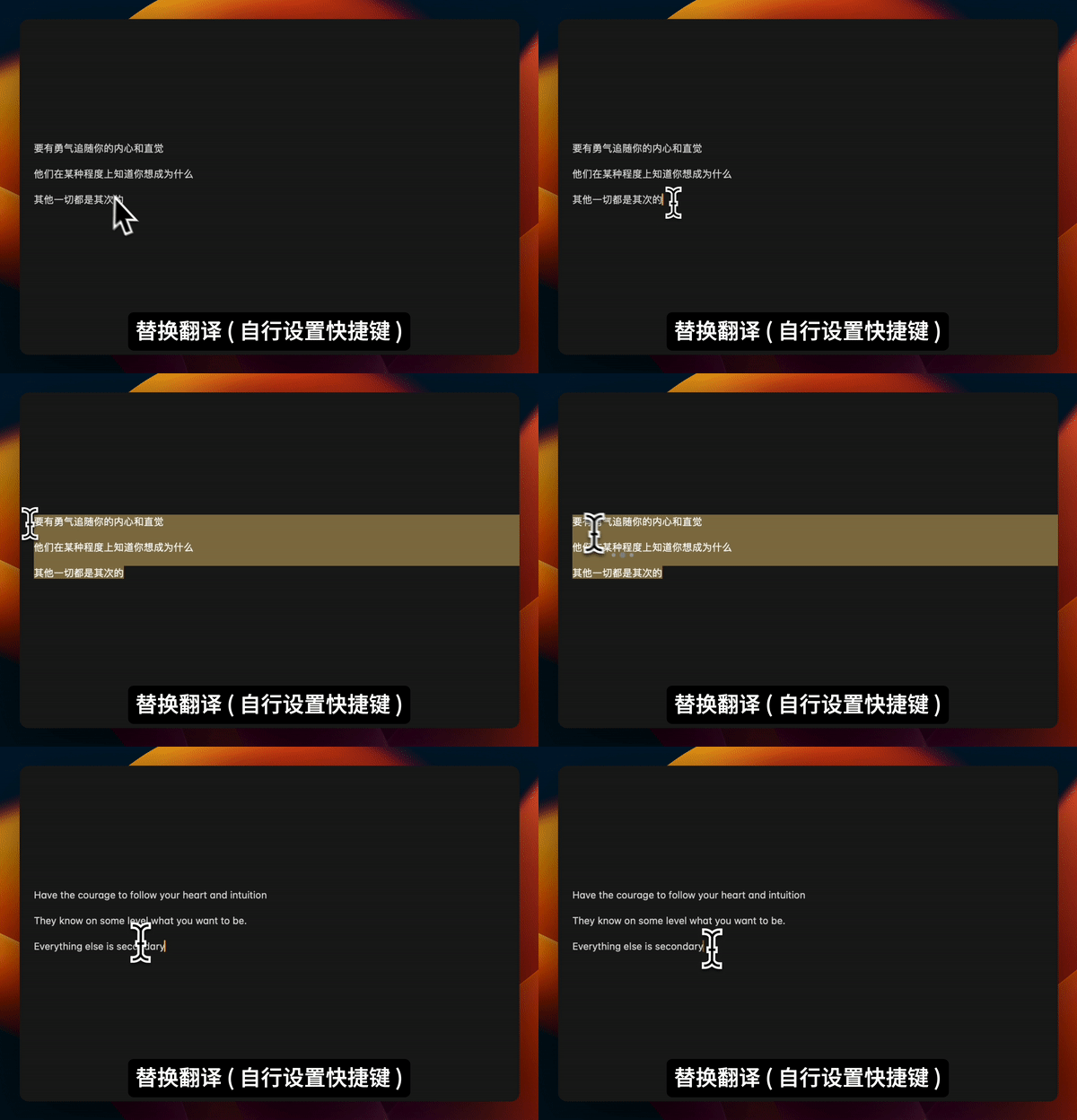
The replacement translation function is now configured. You can select text in any input box with the mouse, mark the word, and then press the shortcut key you configured above
The translation result will be directly overlaid on the selected content
Translate source mode type
There are currently three types of translation source mode types
As shown below, Settings -> Translate source select the first translation source here to see the following three translation modes
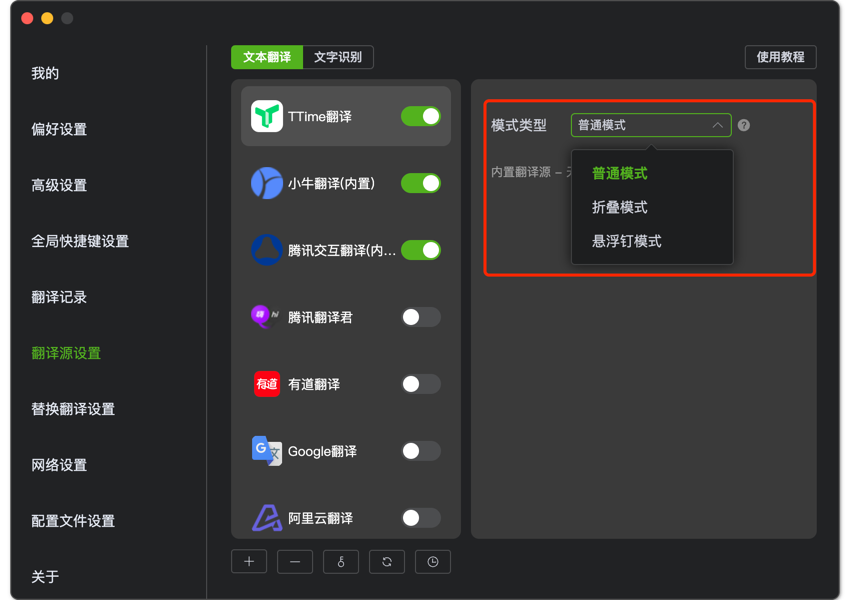
The following are three modes
1. Normal mode
When the translation is triggered, the translation result is automatically expanded. This is the mode used by most people
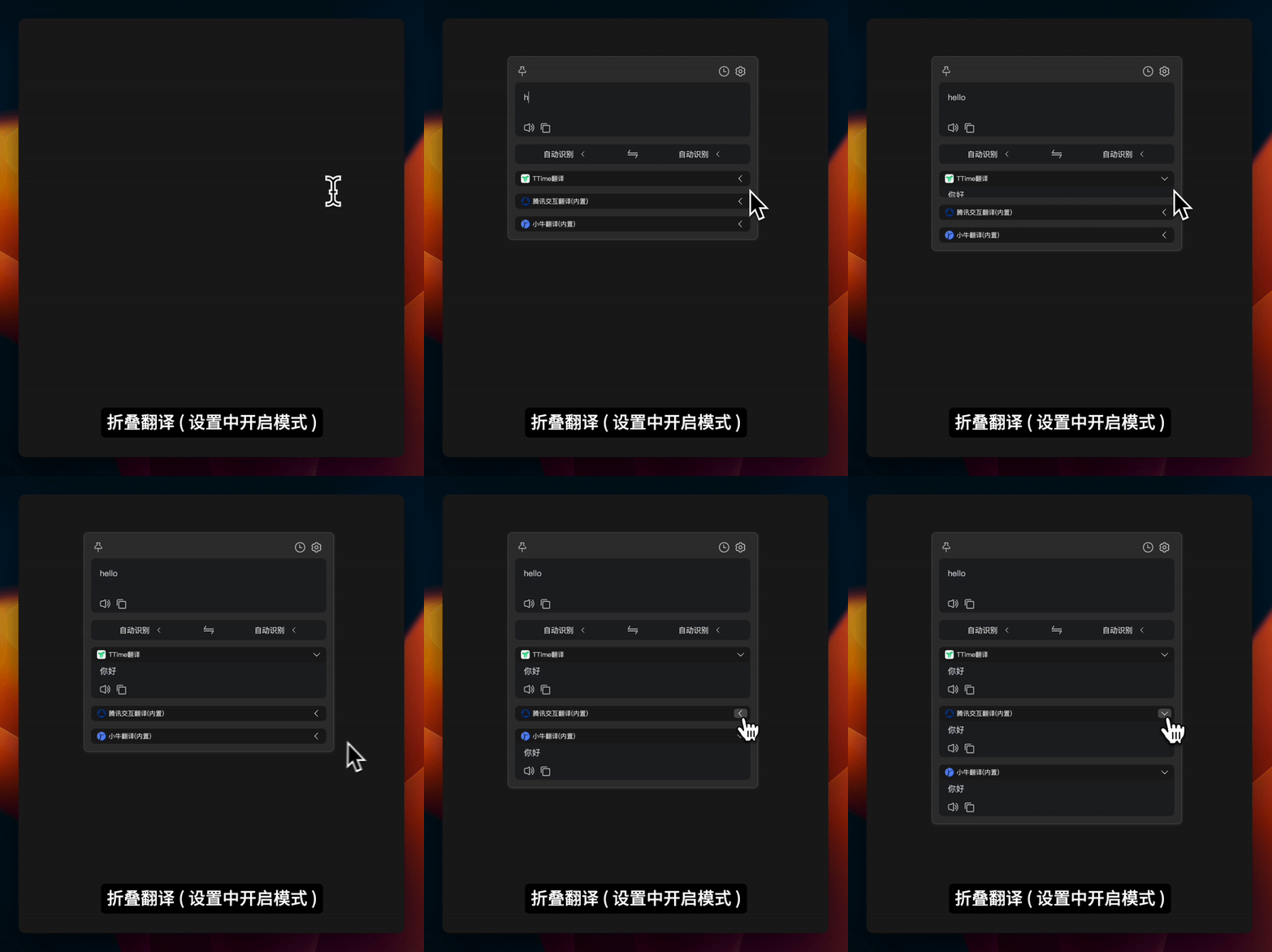
2. Folding mode
When the translation is triggered, the translation will not be called. Click the expansion icon to trigger the translation
After configuration, the effect is as shown below
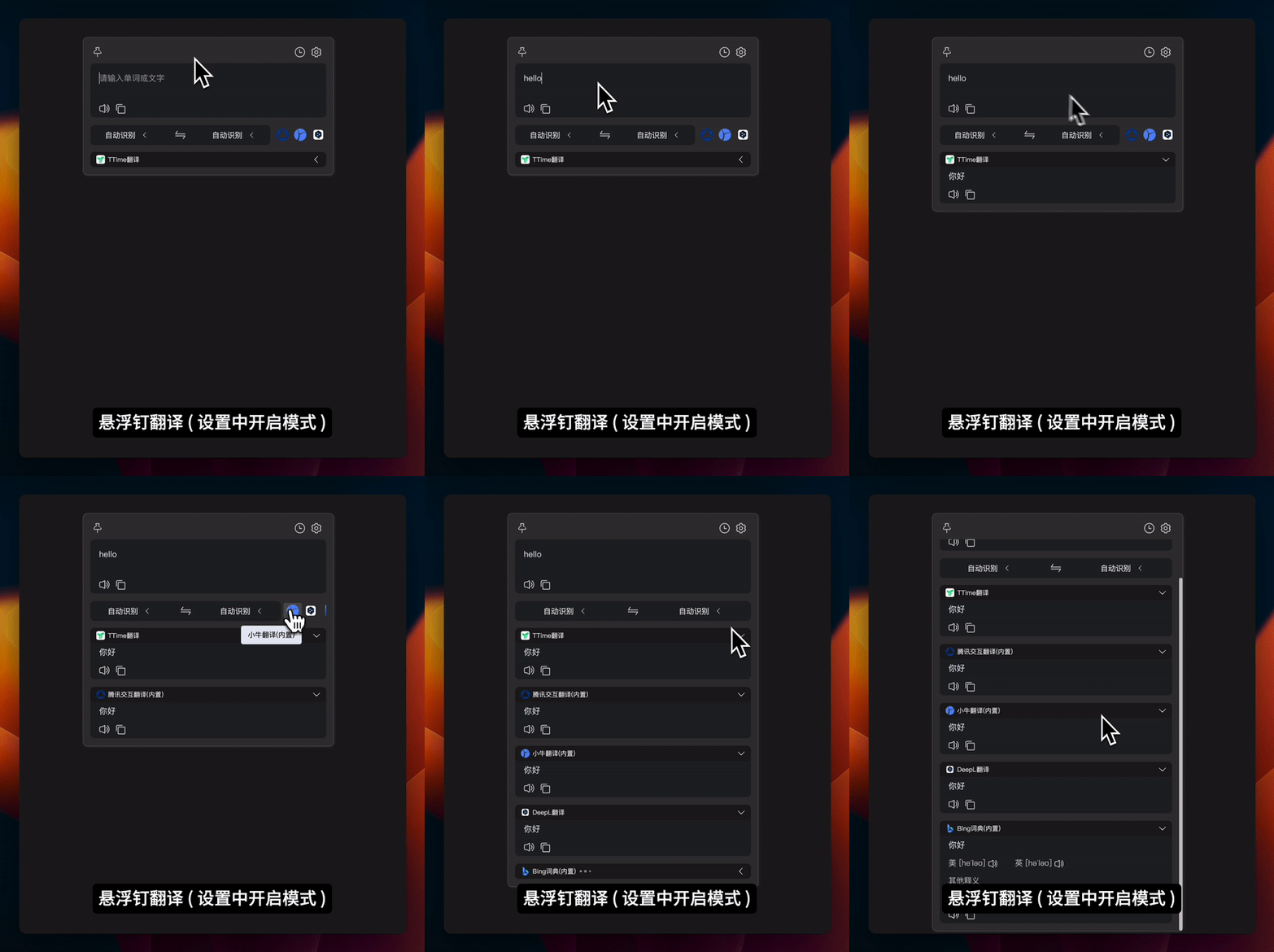
3. Floating pin mode
The translation source icon is displayed in the language bar. It is translated only when clicked and temporarily appears in the translation result list
After reopening the translation window, it will return to the language bar again
After configuration, the effect is as shown below
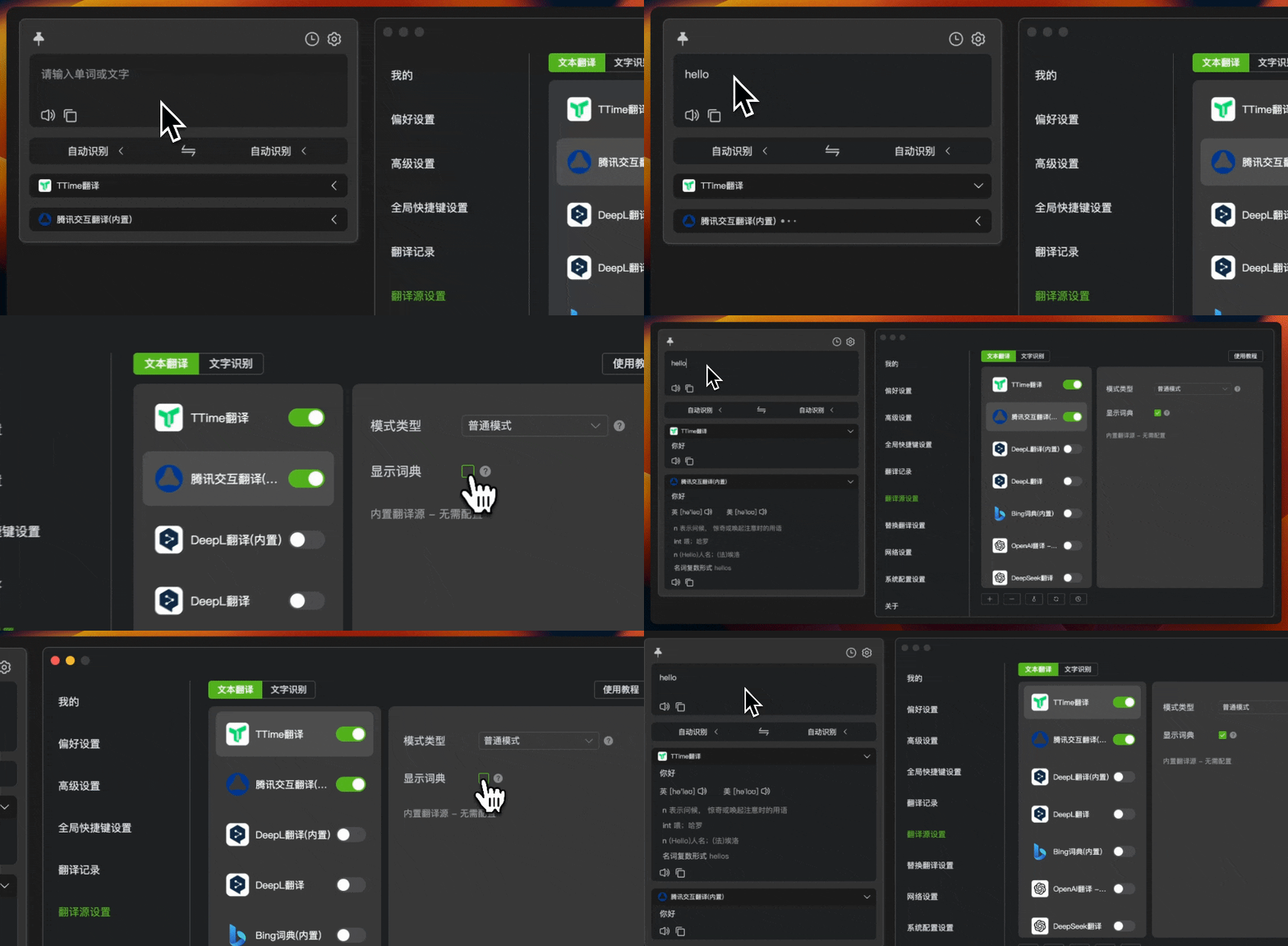
Configure dict and British and American pronunciation for any translation source
Go to Settings -> Translate Source and select the translation source that needs to display the dictionary, and check to turn on Show Dict
Translate source multi-device synchronization
It is mainly used when the user has multiple computers, and other devices are not synchronized after adding/deleting/modifying the translation source
It also solves the trouble of users having to configure translation sources one by one when they change to a new computer
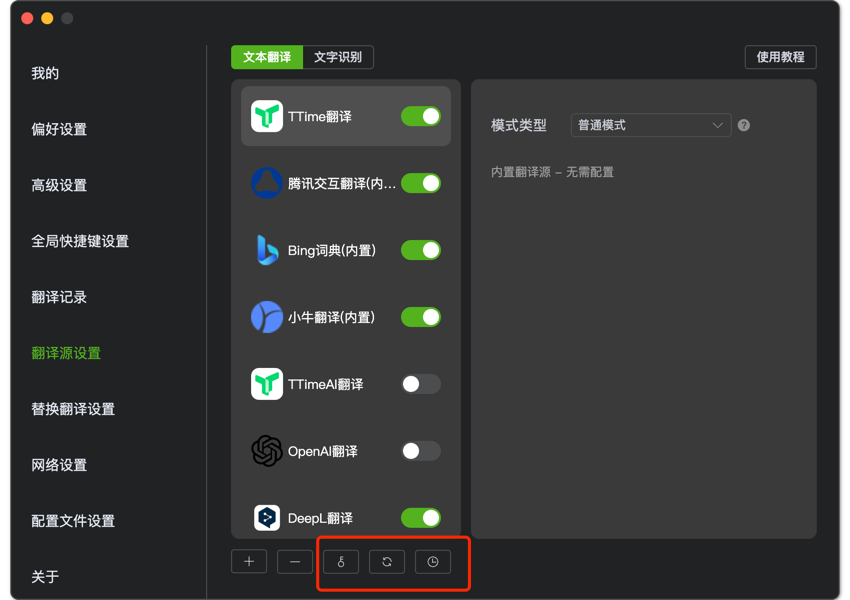
First enter Settings -> Translate Source, you can see that there are three more buttons at the bottom of the translation source, corresponding to the functions: Set Key, Refresh List, View Backup History
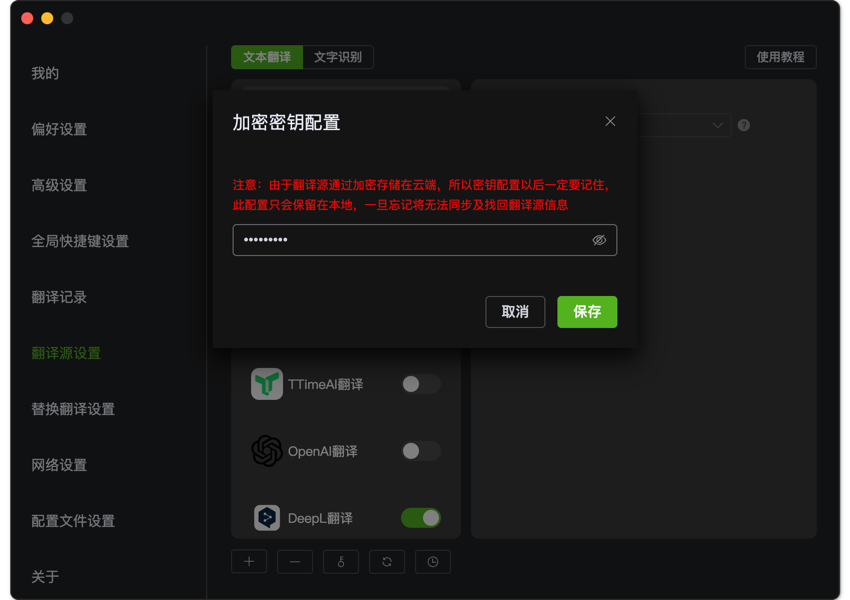
Set key
For the security of the translation source applied by the user, a key needs to be configured here, and the cloud will automatically synchronize only after the key is configured
At the same time, this key will only be stored locally and used for TTime cloud encrypted storage
Note: Since the translation source is encrypted and stored in the cloud, you must remember the key configuration later. This key configuration will only be kept locally. Once forgotten, you will not be able to synchronize and retrieve the translation source information
Refresh list
When the network load fails or is not synchronized in time, the latest translation source will be pulled from the remote again when clicked manually
View backup history
Whenever the translation source is updated, the last full translation source backup will be kept here
When you click Copy this backup, the current version will be overwritten
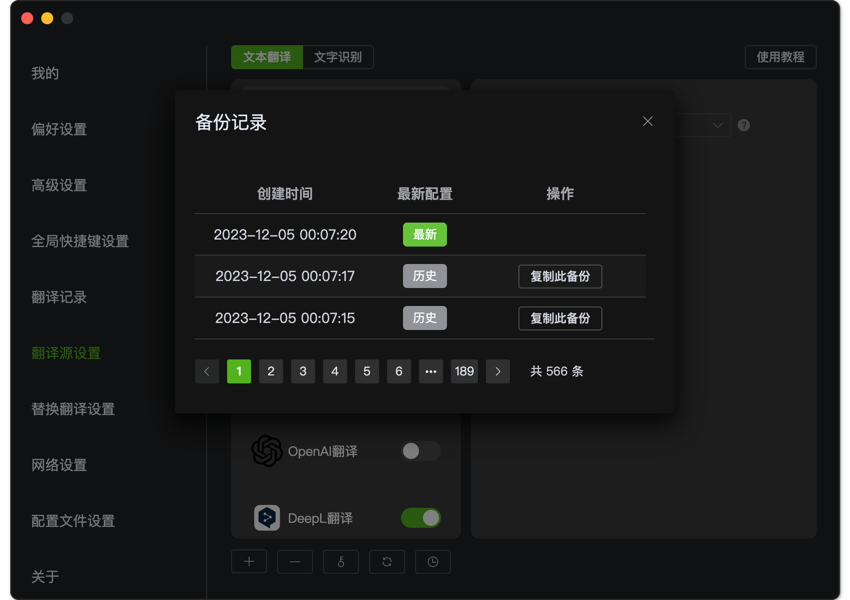
Configure multi-device synchronization
Default common configuration information is automatically synchronized
For example: After the Settings -> Advanced Settings -> Text Processing function is turned on, the Text Processing function will be automatically turned on when you log in to your account on other devices
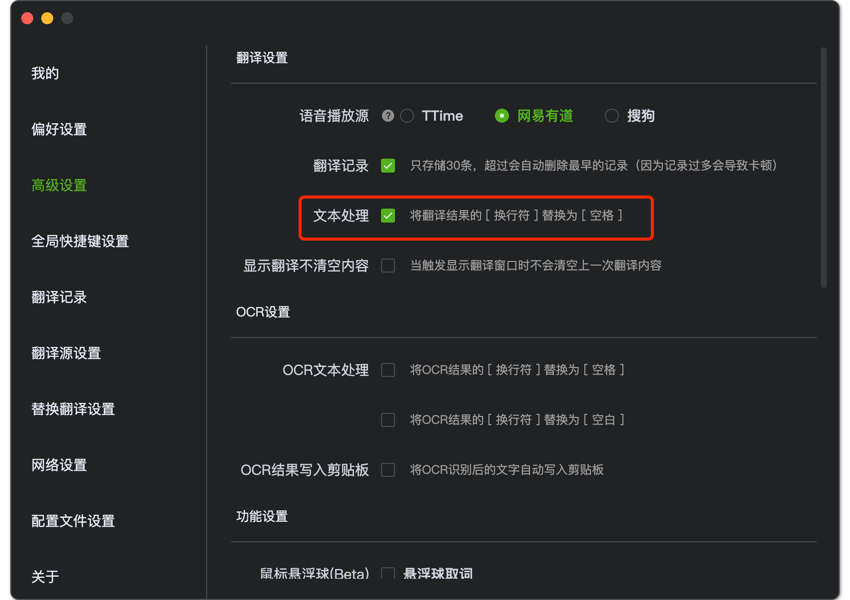
Translate record multi-device synchronization
By default, only 30 built-in translation records are stored, and the earliest record will be automatically deleted if it exceeds (because too many records will cause lag)
The cloud can currently record unlimited records, and after logging in to the account on other devices, the translated translation records can be displayed synchronously
AI translate source
Compared to other translation services, AI translation is trained based on a large amount of text data, so when it processes various professional terms and outputs, it will be more humane and better at understanding the context of sentences or paragraphs
You need to add TTimeAI translation source in Settings -> Translate Source Settings

AI application market
Compared to other translation services, AI translation is trained based on a large amount of text data, so when it processes various professional terms and outputs, it will be more humane and better at understanding the context of sentences or paragraphs
You need to add TTimeAI translation source in Settings -> Translate Source -> AI Translate Applications` to add AI translation applications
You can also click Create Application to customize your own AI translation service

Third-party AI custom prompts
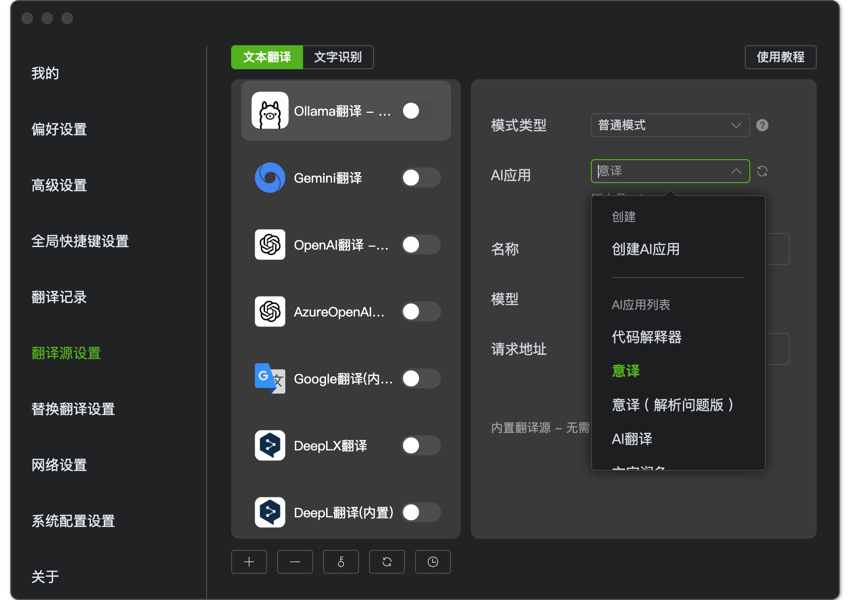
To use it, you need to go to Settings -> Translation source settings -> Select a third-party AI Translate source (such as: OpenAI, Ollama, etc.), and then click the AI APP option to select it
You can also click Create AI application to customize your own AI translation service